
The new MooveGO for WooCommerce API key setup connects your store to your MooveGO company. Before updating, retrieve your company key, check your delivery settings and plan how you will review any pending orders. This guide walks partners and store managers through the transition.
Quick answer: copy your company key from the API Keys page in your MooveGO backoffice, update the existing plugin, enter the key under WooCommerce → Settings → Integration → MooveGO, save and test the connection. Saving a key does not automatically resend historical orders.
What changes with API key authentication?
Your store now uses a company API key to authenticate its requests to MooveGO. The integration also records the sync result for each eligible order line, making it easier to see which items have been sent and which need attention.
- Company API key: connects the store to your company. Keep it private.
- Product Moove Code: identifies the MooveGO content linked to a WooCommerce product.
- Customer game code: is issued after an eligible sale is synchronised. Customers use this code to access their experience.
The API key does not replace your product Moove Codes. These are different fields with different purposes.
What should you prepare before updating?
- Back up your WordPress files and database.
- Have administrator access to your store and access to your company's MooveGO backoffice.
- Prepare the company API key for the environment your store uses.
- Record your current server URL and code delivery setting.
- List any orders awaiting codes so you can review them individually after the update.
Choose a quieter period for the change and tell anyone who manages orders when it will happen. If your store uses a much older plugin folder or a customised integration, contact the Mooveteam team before updating.
Where do you get your MooveGO API key?
Sign in to the MooveGO API Keys page with your company account. You can also open the menu under your username in the top-right corner of the backoffice and select API Keys (Claves API in Spanish).
- Open your username menu and select API Keys.
- Copy the value shown in the API Key field.
- Paste it into your store's MooveGO integration settings and save.
- If the page or key is unavailable, ask your company administrator or your usual Mooveteam contact for help.
If a key already exists, use it for the setup. The Regenerate API key button replaces the existing key; after regenerating, update every connected integration that uses it.
For a live store, use https://go.mooveteam.com and the company key from that backoffice.
Keep your key private. Do not include it in public screenshots or documents.
How do you update the existing WooCommerce plugin?
For stores using MooveGO for WooCommerce 1.6.0, update the existing installation. Use the WordPress update when available, or upload the official ZIP supplied by Mooveteam under Plugins → Add New → Upload Plugin. If WordPress offers to replace the installed version, choose the replacement option. You do not need to delete the plugin first.
After updating, check the installed version and open WooCommerce → Settings → Integration → MooveGO. Review the settings even when the update has preserved them.
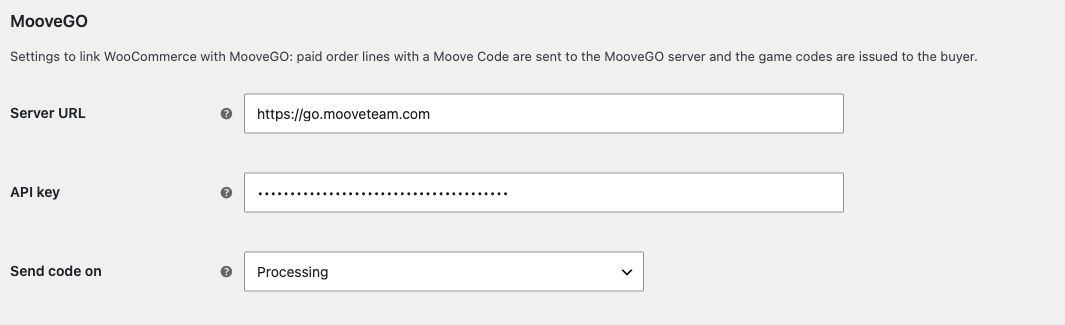
Where do you enter the API key?
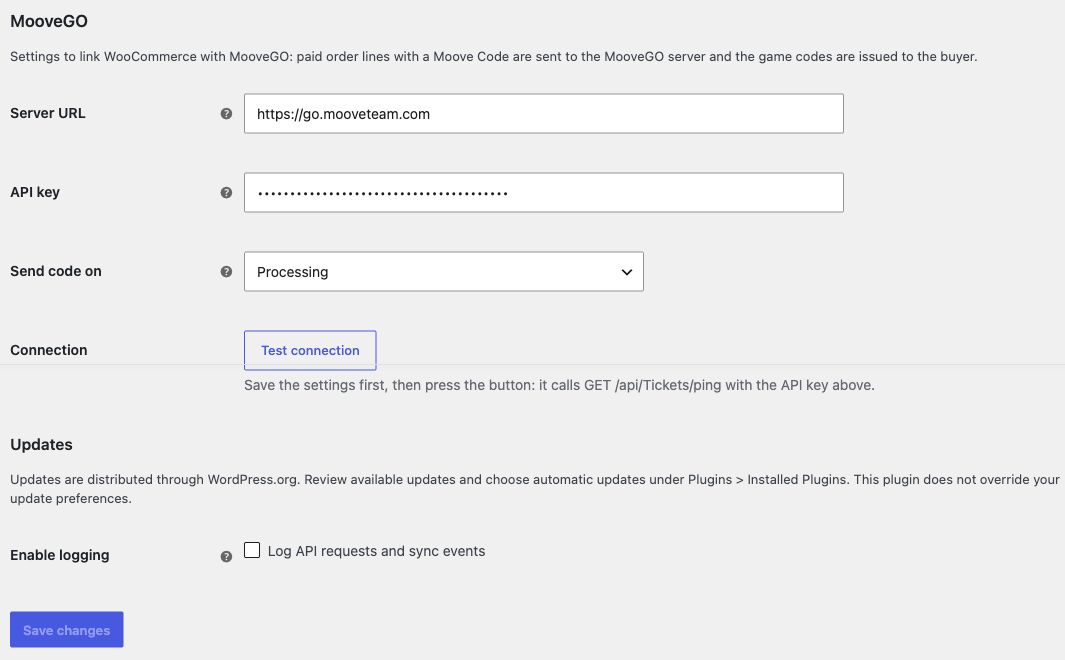
- Check the Server URL.
- Paste your company key into API key.
- Review Send code on: Processing or Completed.
- Click Save changes.
How do you check the connection?
Click Test connection after saving. A successful result identifies the company and its available e-commerce events. Confirm that the company is the one that should receive your store's sales. A successful connection checks authentication; it does not create a test sale or prove that a customer has received a code.
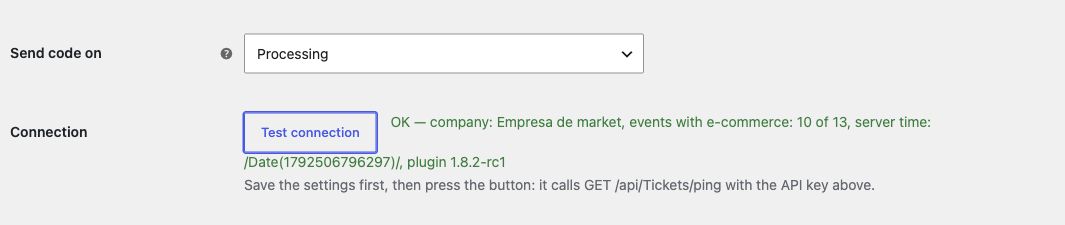
If authentication fails, check that the key belongs to the selected server, has been copied in full and has been saved. If the connection still fails, contact your usual Mooveteam support contact without sharing the key.
When will the plugin send customer codes?
The plugin uses the order's status and your Send code on setting. Only eligible lines with a Moove Code are sent. Pending payment, On hold, Failed, Cancelled and Refunded orders do not trigger new code issuance while in those states.
Bank transfer and cheque payments
Leave the order On hold until you have confirmed payment. If code delivery is set to Processing, change the order to Processing and save before moving it to Completed. If delivery is set to Completed, move it to Completed when it is ready for fulfilment.
If you skip Processing and move directly from On hold to Completed while delivery is set to Processing, check the MooveGO panel. Use Resend now to recover eligible unsent lines after verifying that no ticket was already created.
Cash on delivery
Cash on delivery can put an order into Processing before money has been collected. With Processing selected, this can issue a code before cash payment. If you need to wait, use a fulfilment process that keeps the order outside the selected send status until you are ready to release the code.
Train store managers to treat a manual change to Processing or Completed as an operational decision that may release a code. For background on payment and fulfilment states, see the official WooCommerce order status guide.
What happens to orders placed without an API key?
WooCommerce can still accept the order, but the plugin pauses MooveGO issuance when the API key is missing. The relevant lines show waiting_api_key. Saving the key restores the configuration; it does not automatically replay those orders.
Review each affected order, confirm payment and check the MooveGO backoffice. Then use Resend now for eligible lines that have not been synchronised. This controlled recovery lets you decide which orders should be sent.
Will updating resend old orders or existing codes?
Updating and saving a key are not bulk resend actions. The plugin uses saved sync information to skip lines already recorded as sent, including recognised records from older versions. If an old order's history is unclear, reconcile it with the MooveGO backoffice before trying to send it again.
Resend now retries eligible unsynchronised lines. It is not an email resend button for a code that has already been created. If a customer needs an existing code again, use the MooveGO backoffice or contact support.
What should you check after the transition?
- The connection identifies the correct company.
- Each sellable product still has the correct Moove Code.
- Your payment workflow matches the selected send status.
- A controlled test order shows synchronised lines and a ticket reference.
- The intended customer actually receives the code.
- Orders paused during the change have been reviewed individually.
- Store managers know when to use Resend now and when to contact support.
Need help planning your store's transition? Contact your usual Mooveteam representative with your store URL, installed plugin version and relevant order number. Share the sync status or error message, but keep API keys and customer details out of public screenshots.


