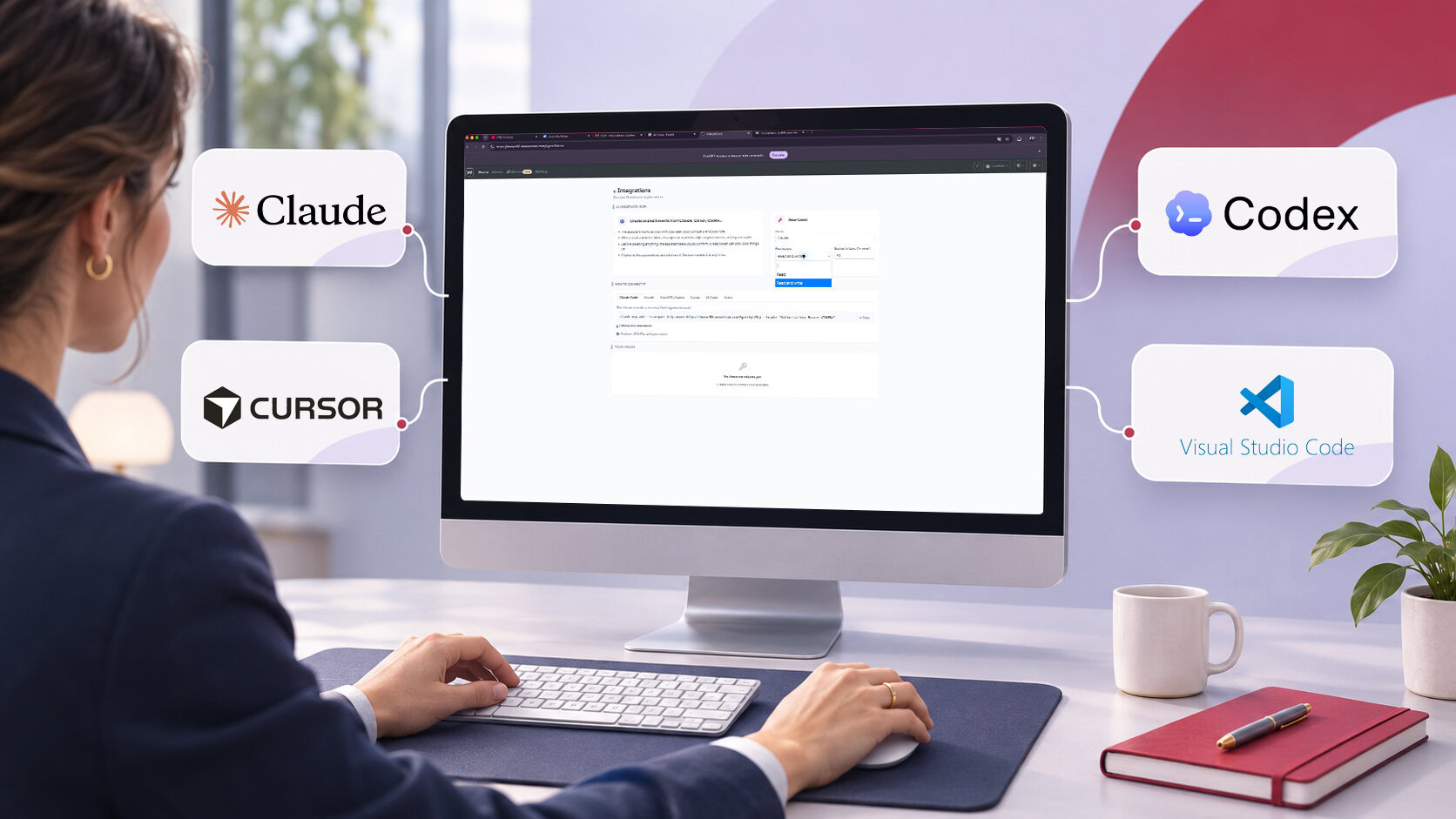
You can connect an AI assistant to your Mooveteam account to look up event information or help create and edit events. The connection uses a private token and follows the permissions of your user account, company and role.
Quick answer: Open your account menu in the Mooveteam back office, select Integrations, create a token with the permissions you need, then choose your assistant in How to connect it and follow the instructions shown there.
How do you create a token?
- Sign in to your Mooveteam back office. Open the account menu in the top-right corner and select Integrations.
- Under New token, enter a name that helps you recognise the assistant or connection.
- Choose Read if the assistant should only consult event information, or Read and write if it should be able to create and edit events.
- Set the expiry period. The form proposes 90 days; you can change it before selecting Create token.
- Copy the new token and keep it private. Treat it like a password.
How do you connect your assistant?
In the How to connect it section, select the tab for Claude Code, Claude, ChatGPT / Codex, Cursor, VS Code or Other. The page shows the connection address and instructions for that tool. Use its Copy buttons and replace <TOKEN> with the token you created.
For Codex, follow the ChatGPT / Codex tab. At the time of writing, the ChatGPT app itself does not support this token-based connection; use Codex instead. The Claude connector’s request-header option may also depend on your Claude account. The Integrations page shows an alternative for Claude Desktop.
Once connected, try a simple request such as “Show me my events.” A token with Read permission can look up information. A Read and write token can make changes, which are saved to your events as they are made.
How do you keep the connection secure?
Keep tokens out of shared files, public screenshots and messages. Start with Read permission if you only need to explore your events. You can revoke a token from the Integrations page when you no longer need it.
Need help choosing permissions or connecting a particular assistant? Contact the Mooveteam team.


